
Most specialty contractors already run their business in QuickBooks, so job costing in QuickBooks feels like it should be straightforward. It rarely is. QuickBooks was built for general accounting, not project-based construction work, so job costing takes deliberate setup. A clean setup only gets you halfway.
The job costs QuickBooks reports are only as reliable as the hours behind them, and hours reach the ledger as human-reported numbers. This guide covers how to set up construction job costing in QuickBooks, where it breaks down, and how accurate hours change what your costs reveal.
Written for subcontractors and self-perform contractors tracking their own crews, not general contractors managing subs.
What Does Construction Job Costing In Quickbooks Track?
Construction job costing tracks all the costs tied to a specific job so you can determine what you spend and whether that particular job made money. In QuickBooks, that means routing each cost type to the correct job:
- Labor costs from timesheets
- Material costs from bills
- Equipment costs from rentals
- Subcontractor costs from invoices
Then compare actual costs against your estimates. A profit and loss report shows how the business did overall; job costing shows how each individual job did, the number contractors bid against.
QuickBooks was not specifically designed for construction, but it handles the accounting side well. It categorizes costs, applies overhead expenses, and produces detailed reports on project profitability once data is entered. What it cannot do is confirm those hours are accurate. That matters, because labor is usually your largest and most volatile job cost.
Job Costing In Quickbooks Online vs. Quickbooks Desktop
Job costing works differently in QuickBooks Online than in QuickBooks Desktop. Both track job costs, but organize projects differently.
QuickBooks Online uses the Projects feature. You turn it on in company settings, create a project for each job, and assign every bill, vendor expense, and credit card charge to the right project. QuickBooks Online then runs project reports, including a project profitability report.
QuickBooks Desktop ties each job to a customer through a Customer:Job hierarchy supporting sub-jobs and granular cost tracking. The Contractor and Accountant Edition versions add trade-specific reports. QuickBooks Desktop runs on-premise, with item-level detail but local hosting.
QuickBooks Online | QuickBooks Desktop | |
Job structure | Projects feature | Customer:Job hierarchy with sub-jobs |
Reporting | Project profitability reports | Job cost reports by job |
Best fit | Cloud access across projects | Granular, item-level costs |
Labor input | Timesheets or estimated hourly cost | Timesheets tied to Customer:Job |
Neither version verifies the hours you feed it. QuickBooks Online and QuickBooks Desktop both calculate labor costs from whatever timesheets arrive, which is where the accuracy question starts.
Digital timesheets built from verified check-ins settle most of that question before the hours ever reach QuickBooks.
How To Set Up The Job Costing Feature In Quickbooks
Setting up job costing in QuickBooks follows the same four moves in either version: turn on the job costing feature, create your projects, structure your cost codes, and connect costs to specific jobs so you track expenses accurately.
Turn On The Job Costing Feature And Create Your Projects
Enable project tracking first. In QuickBooks Online, open company settings, go to Advanced, and turn on the job costing feature. In QuickBooks Desktop, enable job costing in preferences, then create a job under each customer. Intuit’s guide to setting up projects walks through the QuickBooks Online steps in detail.
Build A Cost Code Structure Your Crews Will Use
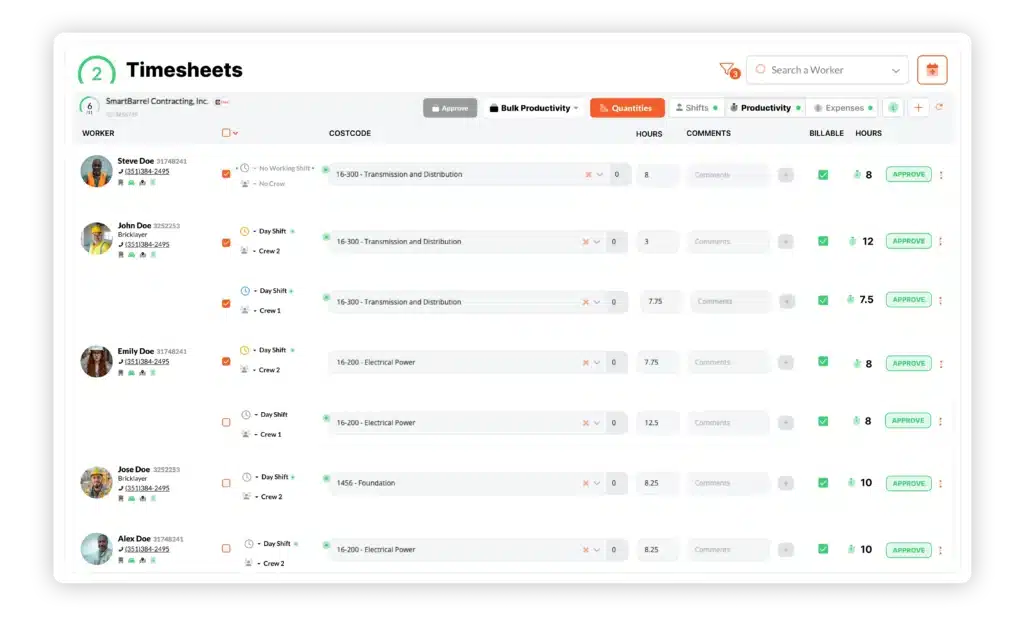
This structure organizes costs within each job, usually as a numbered system mirroring how your trade works (for example, 100 rough-in, 200 trim, 300 service). In QuickBooks, each cost code is created as an item in the Products and Services list, then mapped to an expense account. The design challenge is field adoption: too many codes drift into catch-all buckets, too few and you lose useful detail.
Tie Labor Costs And Other Expenses To Specific Jobs
Assign every timesheet, bill, check, and vendor charge to the right job as costs happen. In QuickBooks Online, set the project in the Customer/Project field on each expense. In QuickBooks Desktop, choose the job in the Customer:Job column. Capturing these expenses as they occur keeps job costing data current and protects cash flow.
Run Reports To See Project Profitability
The reporting tools run your reports to show which projects are making money and the details behind each cost code. In QuickBooks Online, open the Projects menu, choose Project Profitability, set your filters, and select Run Report. In QuickBooks Desktop, the Jobs, Time & Mileage reports break down job profitability by job and job type. Reviewing reports makes job costing an early warning system, not a postmortem.
Where Job Costing In Quickbooks Breaks Down For Contractors
Job costing in QuickBooks breaks down most often at the labor line, because hours are the only major cost that depends on human reporting. Materials arrive with invoices. Equipment costs come with rental receipts. Subcontractor costs come as invoices. Time depends on workers checking in, hours being recorded, and each cost code assigned, and every step can introduce variance into your costs.
The pattern is familiar:
- Time entries get rounded to the nearest increment.
- Check-outs get captured from memory after the fact.
- Cost codes get assigned days later during a batch review.
None of this reflects anyone acting in bad faith. It is a process limitation, and one that is labor intensive to fix. When time is reconstructed rather than captured as work happens, that variance flows into every cost that follows, and no QuickBooks setting corrects a number already wrong on arrival.
The gap opens the moment an hour gets written down later than it happened. On a glazing job I could tell you at three in the afternoon who was on that floor. By Friday the sheet says eight hours for everyone, because that is what the week looked like from memory. QuickBooks does exactly what you ask of it. It has no way to know the eight was rebuilt after the fact.
Albert Bou Fadel, Founder and CEO, SmartBarrel
The stakes scale with your margins. Research cited by CFMA puts average construction net profit margins in the 3 to 7 percent range. When margins are that thin, one job’s hours running over can move it from profitable to loss while the reports still show healthy costs.
How Accurate Labor Data Improves Job Profitability
Accurate job costing starts with accurate hours, so the biggest improvement is fixing how time enters the system before it reaches QuickBooks. When hours are captured and verified at the source, the cost codes, project profitability, and estimates built on top of them become trustworthy by default, and payroll runs on the same clean data.
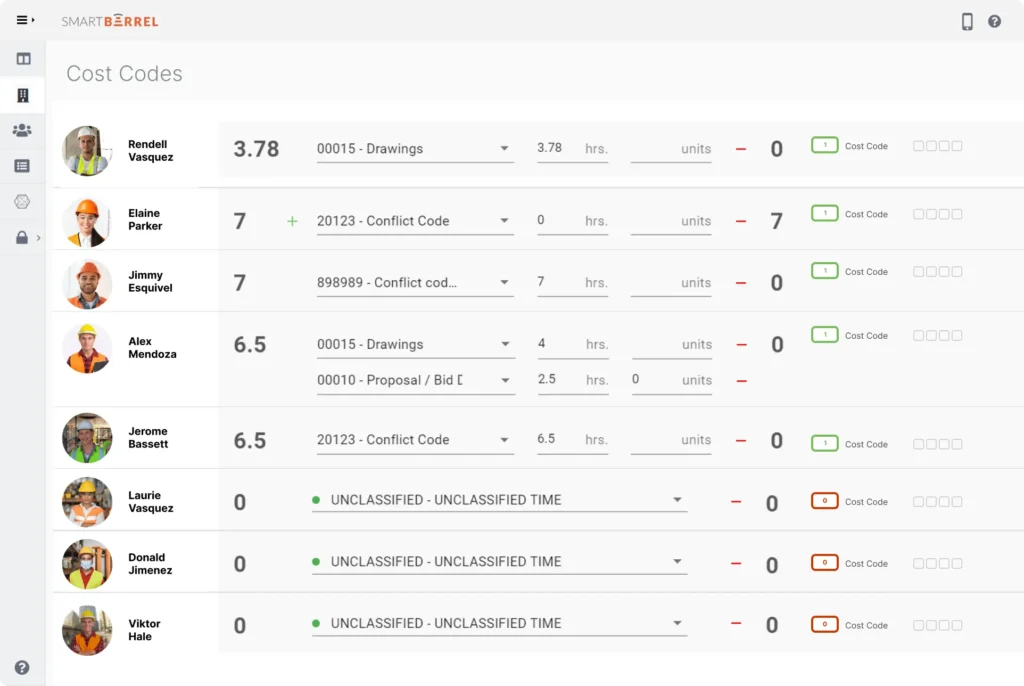
SmartBarrel is built to fix that at the source. Workers check themselves in and out using biometric facial verification, so hours are tied to a verified record instead of a recollection. Cost codes get assigned to pre-populated timesheets during review rather than rebuilt from memory.
That structured construction labor cost tracking software feeds QuickBooks Online and QuickBooks Desktop like other third party applications, so job costing runs on hours that actually happened, with far less manual data entry and no duplicating work.
What Accurate Hours Changed
Dynamic Systems Inc. (DSI), a union mechanical contractor with roughly 2,500 employees, rolled out biometric construction time tracking software across more than 50 projects. The system surfaced about $2.6 million a year in overreported and inaccurate hours, not all of it intentional, and cut roughly $260,000 a year supers and foremen spent collecting time. As Randy Smith, DSI’s Director of Enterprise Applications, put it, before the change “it would take days before that data made it into job costs.”
I ask them how last Tuesday's hours got into the system. If the answer starts with someone remembering, or reviewing, or rekeying, then the report is only as good as that recollection. A trustworthy number and a reconstructed one look identical on the screen, and that is the part that catches people out.
Yana Tcharnaia, CRO, SmartBarrel
Request a demo: see how verified field hours feed job costing in QuickBooks.
Best Practices For Accurate Job Costing In Quickbooks
A few habits separate contractors whose QuickBooks numbers match reality from those whose costs drift. Most protect the data before it reaches the ledger:
- Keep your active cost code list short. Show crews only the codes for the current phase so entries stay consistent.
- Review hours before they sync to payroll. The last cheap point to catch a bad number and save a fix later.
- Track committed costs, not just invoiced ones. Material and equipment costs that lag by weeks can make project costs look healthy over the life of the job.
- Separate change order work from the original budget with distinct cost codes, so a job that looks over budget isn’t just carrying approved scope.
Applied consistently, these habits help you maximize profit on profitable jobs, cut time fixing expenses, and identify unprofitable work early so the business can focus on what pays.
The habit that quietly does the damage is treating job cost accuracy as an accounting problem. The office inherits whatever the field hands over, so the correction keeps getting attempted inside QuickBooks, where the number is already set. The contractors whose reports hold up moved the accuracy question to the point of capture and stopped asking the ledger to solve it.
Yana Tcharnaia, CRO, SmartBarrel
Together they give contractors job cost numbers they can trust. For the full framework behind these practices, see SmartBarrel’s construction job costing guide for contractors.

Frequently asked questions about job costing in QuickBooks
Can QuickBooks handle construction job costing without add-ons?
Yes, QuickBooks handles job costing in QuickBooks Online through the Projects feature, or job costing in QuickBooks Desktop through the Customer:Job structure. It categorizes costs and reports profitability once entered. Many contractors pair it with third party applications to capture field hours, since the question is whether those hours are accurate.
Does QuickBooks job costing account for labor burden?
QuickBooks can include labor burden if payroll is configured to capture it, sometimes with assistance from an accountant, but many setups only job cost the base wage. A fully burdened rate adds payroll taxes, workers’ comp, and benefits on top of the wage. If those benefits are missing, your reports understate what each job actually costs.
How do I reconcile QuickBooks job costs with what happened on the jobsite?
Capture and verify hours at the source before they reach QuickBooks, so little is left to reconcile. Review each timesheet against its cost code before it syncs to payroll, then trust the job cost reports built on that verified record, not memory.
Reliable job costing in QuickBooks comes down to one thing most guides skip: the hours must be right before they reach the ledger. Get the data right at the source, and QuickBooks does the rest, giving you clean project costs to bid and maximize profitability across the business.
Request a demo or contact SmartBarrel to see the most accurate time from the field feed your job costing in QuickBooks.