BuildOps Time Tracking Integration with SmartBarrel

1736805032991
buildops integration

BuildOps is an operations and service management platform for commercial contractors rather than residential builders. Contractors in HVAC, mechanical, electrical, plumbing, fire and life safety, and refrigeration use it to run service work, project management, sales, financial management, and payments. Its labor numbers are only as reliable as the field hours that feed them.

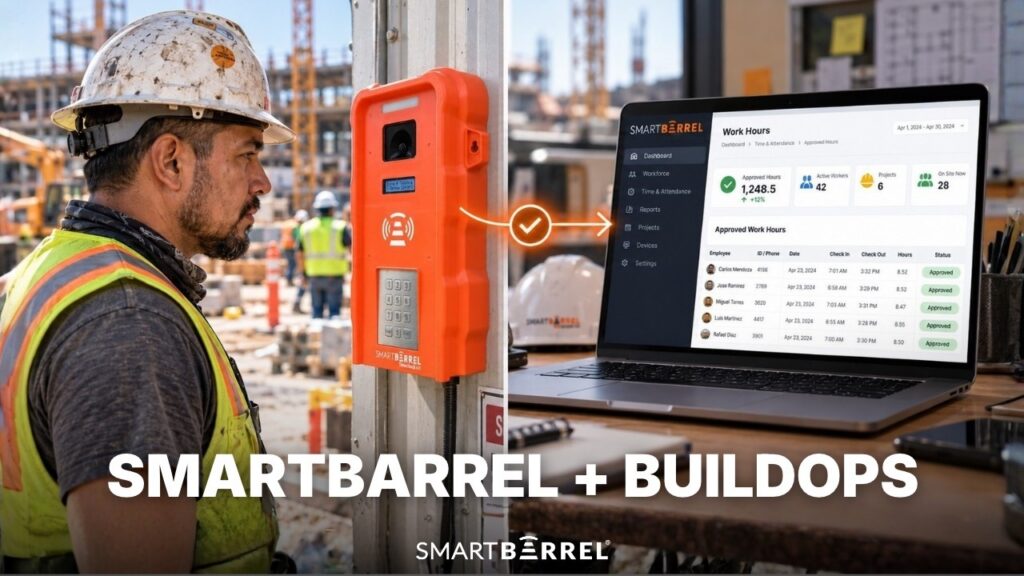
BuildOps tracks time through its technician mobile app, where crews log hours and breaks from their phones. SmartBarrel’s BuildOps integration adds a layer of proof to those hours: confirmation of who actually punched in. SmartBarrel’s AI facial verification takes a picture at every check-in and compares it with that worker’s earlier photos, with no photoshoot required to set it up. Contractors also choose how each crew clocks in, whether that’s the SmartBarrel mobile app, a kiosk app on a shared tablet, or the TimeClock 4.0 mounted at the jobsite entrance.

The integration then carries those verified hours into BuildOps. Workers, projects, cost codes, and earn codes sync from BuildOps into SmartBarrel. Crews check in on the jobsite, foremen approve the timesheets, and approved hours go back to BuildOps as time entries split into regular time, overtime, and double time.

Payroll is where that accuracy shows first. An EY survey of U.S. payroll professionals found that one in five payrolls contains errors and each error costs about $291. Accurate hours and cost codes captured in the field mean accurate paychecks, fewer correction checks, and less admin time for specialty contractors tracking their own crews.

Where SmartBarrel Fits in Your BuildOps Platform

BuildOps stays the single source for workers, projects, and codes. SmartBarrel pulls those records in, so foremen in the field and the team in the office work from one list of jobs and cost codes. Fields mapped from BuildOps stay locked in SmartBarrel by default, and admins keep the ability to unlock them when a record needs a local edit.

On the jobsite, SmartBarrel gives contractors three ways to clock in, and each one ends with the same facial verification check against the worker’s earlier photos.

TimeClock 4.0 For Larger Crews

The TimeClock 4.0 is a rugged, IP65-rated device that mounts with magnets or screws on a fence, column, trailer, or container. It runs on AC power, solar, PoE, or a Milwaukee or DeWalt tool battery. Workers enter their phone number or tap a self-registered fob, look at the camera, and the check-in takes about three seconds. It fits jobsites where 10 or more workers come through the same entrance.

Kiosk App For Smaller Or Mobile Crews

In kiosk mode, the  SmartBarrel mobile app turns one shared phone or tablet into a check-in station. As long as one person has the app downloaded, the whole crew can clock in, and geofencing keeps the project available only while the device is on site.

Personal App For Solo Workers

Workers who move between jobsites clock in on their own phones, with the same geofencing and facial verification.

Whichever method a crew uses, every punch lands in one SmartBarrel dashboard, and approved hours go back to BuildOps. Every system behind BuildOps inherits the quality of those hours, whether that’s QuickBooks Online, Sage Intacct, or a newer platform like Intuit Enterprise Suite.

The same verified data can feed reporting outside BuildOps too. The SmartBarrel Power BI connector gives finance and operations teams a second path for labor reports alongside BuildOps dashboards and the other software tools they already use. The integration syncs BuildOps projects, so it’s built around crews assigned to commercial work at a defined jobsite, which matches the market BuildOps serves.

What the SmartBarrel and BuildOps Integration Does

BuildOps time tracking through SmartBarrel runs in two directions. Setup data flows from BuildOps into SmartBarrel, and approved time flows back.

From BuildOps into SmartBarrel:

  • Workers, including name, email, cell phone number, and payroll ID
  • Projects, including number, name, address, status, and linked subjobs
  • Cost codes for each imported project
  • Earn codes, which are BuildOps payroll hour types

From SmartBarrel into BuildOps:

  • Approved timecards export as time entries against the correct project and cost code, split into regular time, overtime, and double time.
  • Hours edited after export update the matching BuildOps entry, and a deleted shift dismisses it.

Accurate payroll depends on two things: how many hours each worker logged, and whether each hour is classified correctly as regular time, overtime, or double time. Under federal overtime rules, covered non-exempt employees earn at least one and a half times their regular rate for hours over 40 in a workweek, and prevailing wage and union agreements often add double time rules on top. After an earn code sync, each BuildOps hour type has to be mapped and classified before its time can export.

If a timecard carries an hour type that isn’t ready, SmartBarrel holds the timecard back and names the code in the error instead of sending overtime across as regular time. An overtime hour paid as straight time underpays the worker and creates compliance risks for payroll processing. A regular hour paid as overtime inflates labor cost on the job.

See the BuildOps integration running on your own projects

How Cost Codes Flow From BuildOps to the Field

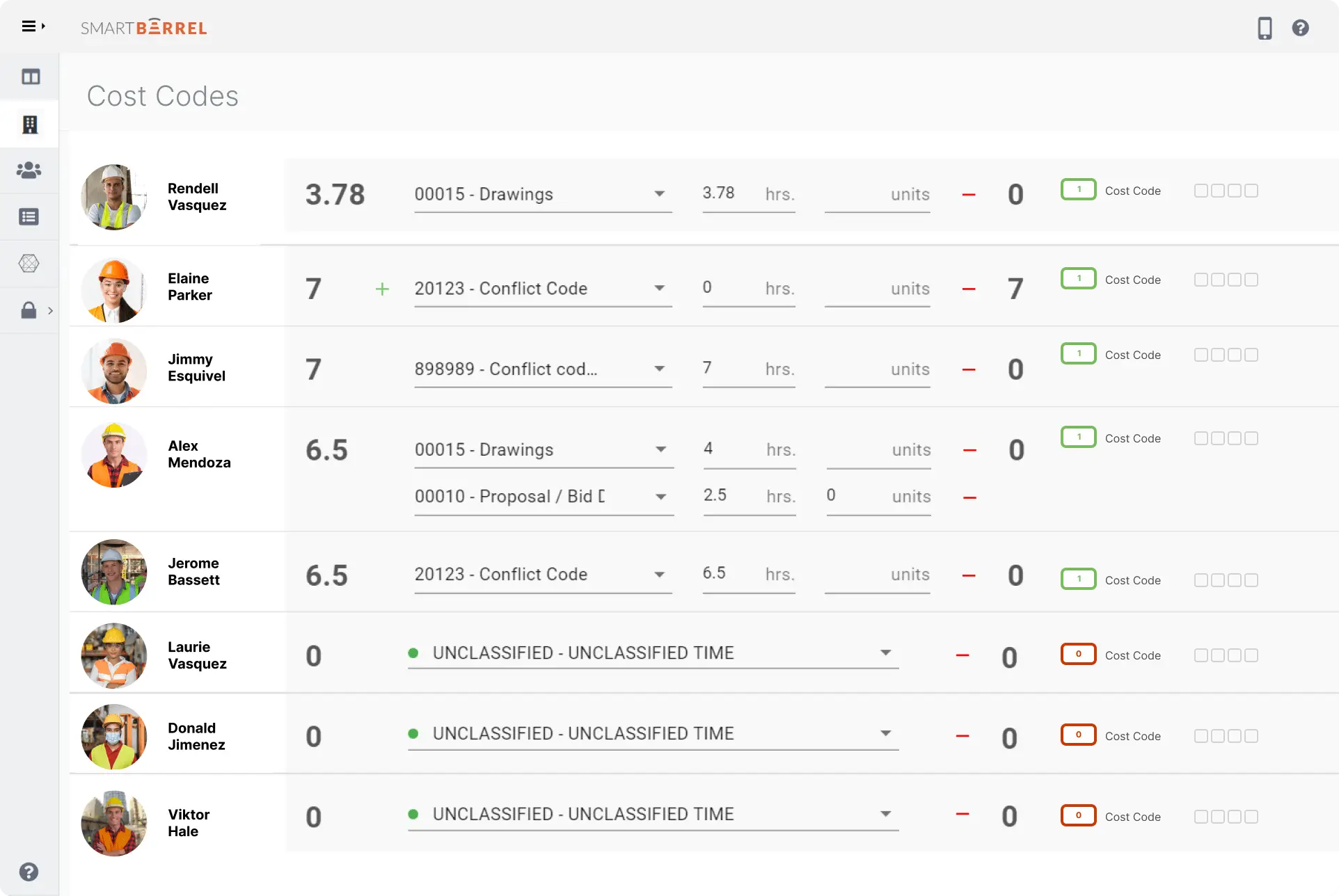
SmartBarrel syncs each project’s cost codes from BuildOps, so foremen pick from the same system accounting uses. BuildOps groups codes by phase and department, and the same code name can repeat across both. SmartBarrel builds each name from phase, department, and code name, so two codes called 01-100 under different departments stay distinct in the field. For background on how codes are structured, see this guide to construction cost codes.

Order matters when one jobsite spans several BuildOps projects. BuildOps has no native subjob concept, so admins link additional BuildOps projects to a main project first. The next cost code sync then pulls codes and labor budgets from every linked project, each labeled with its project name.

Two settings keep the cost code list short and current. The first imports only the codes that have a labor budget, so foremen see fewer codes to choose from. The second syncs the list automatically, so a code removed in BuildOps also disappears from SmartBarrel. Admins can still run a sync by hand at any time, and SmartBarrel keeps a log of every sync.

SmartBarrel time tracking software dashboard allows for easy cost code assignments
"The first setting we usually turn on is Use Budgeted Cost Codes. A BuildOps project can carry every phase and department the estimating team ever set up, and when a foreman has to scroll through all of that on a tablet at the end of a shift, the closest-looking code tends to win. A longer list feels more complete, but it gives the field more ways to land an hour in the wrong place. When the list only shows codes with a labor budget behind them, every hour goes somewhere the job is actually tracking, and that's what makes the cost report worth reading."
1739370735901
Albert Bou Fadel
Founder & CEO of SmartBarrel

How to Set Up the BuildOps Integration, Step by Step

Setup is a one-time process, and the full BuildOps integration setup guide covers each screen.

  1. Generate a Client ID and Client Secret in BuildOps. One set covers the whole company.
  2. In the SmartBarrel dashboard, open Integrations > BuildOps, enter the credentials, click Connect, and select the right tenant if the account has more than one.
  3. Run a worker sync from BuildOps, import BuildOps projects to create new SmartBarrel projects or merge existing ones, link any subjobs, and sync cost codes.
  4. Sync earn codes, classify each hour type as regular, overtime, or double time, and turn on Timecard Sync for each project.
  5. Deploy the TimeClock 4.0 at jobsite entrances or muster points, or set crews up on the mobile app.
  6. Have workers clock in and out by entering their phone number and taking a picture, so facial verification confirms presence in seconds without a photoshoot.
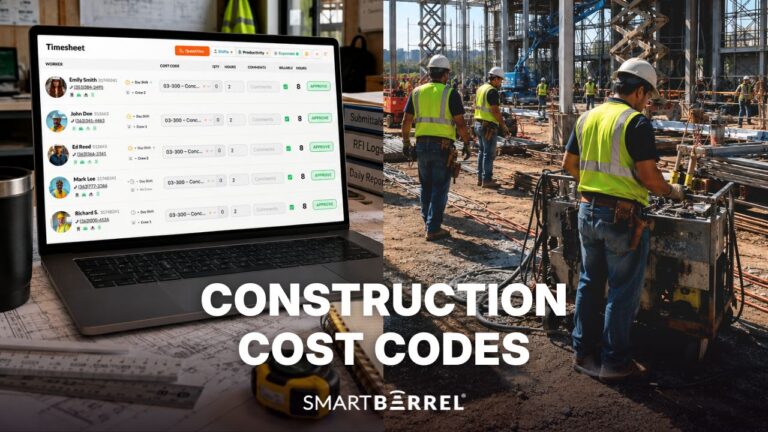
  7. Have foremen review auto-populating timesheets in the SmartBarrel dashboard, assign cost codes, and approve, so they can focus on the crew.
  8. Export approved timecards to BuildOps per project and per day, or send several projects at once from the Sync Dashboard.

Once the integration is configured, daily BuildOps time tracking comes down to review and approval. Testing the earn code mapping on one project before rolling out across every jobsite catches gaps early, and the sync log shows each run’s sent, updated, and held-back timecards.

Foreman Entered Time vs. the BuildOps Integration

Foreman entered time puts a heavy load on the people running the work. It’s common for foremen or site supervisors, responsible for keeping projects on track, are forced to also be timekeepers. The challenge comes from the process: hours get reconstructed from memory or field reports at the end of the day or week, cost codes get picked after the fact, and overtime depends on how each entry is keyed into BuildOps. Construction time tracking at the point of check-in moves that work out of the foreman’s evening.


Foreman entered time

SmartBarrel + BuildOps

Data source

Reconstructed from memory or the schedule

Facial verification at check-in and check-out

Cost codes

Picked at the end of the day or week

Synced from BuildOps, assigned during foreman review tied to hours worked

Overtime and double time

Depends on how each entry is keyed

Mapped earn codes, with unmapped hour types held back

Buddy punching

Hard to detect

Eliminated by facial verification at check-in

Audit trail

Spreadsheets and notes

Sync log for every run

Payroll usually feels the change first. Dynamic Systems, Inc. (DSI), a union mechanical contractor based in Austin with about 2,500 employees, runs weekly payroll. Before SmartBarrel, its hours went from paper sheets to foremen to Excel before payroll ever saw them. During the pilot, Randy Smith, DSI’s Director of Enterprise Applications, found that the hours going into payroll were “double or triple what SmartBarrel was actually showing.” DSI now estimates about $2.6 million a year in potential savings from overreported and inaccurate time, plus $260,000 a year in time supers and foremen no longer spend collecting hours. 

DSI also uses BuildOps, though these results come from SmartBarrel’s verified time tracking rather than the BuildOps integration. For a weekly payroll shop, moving away from rekeyed paper timesheets is a huge improvement in efficiency and consistency, and job costing improves next, once a few pay periods of verified hours build up.

"Double time is the one that surprises people. On union and prevailing wage work, a long Saturday or a holiday shift should split across regular, overtime, and double time, but when hours get entered in bulk at the end of the week, a lot of that lands as plain overtime. Contractors usually find out from a worker holding a pay stub, and then payroll is cutting a correction check and rechecking every other timecard from that week. Once each BuildOps hour type is mapped and anything unmapped gets held back, that conversation moves from the paycheck to the approval screen, which is where it belongs."
1758055845762 (1)
Yana Tcharnaia
CRO at SmartBarrel

What Accurate Field Data Does for BuildOps Job Costing

Overtime is where unverified hours tend to reach job cost fastest. RBD Construction, a steel erection contractor with about 200 workers across 26 jobsites, saw overtime fall from 1,504 hours to 834 in its first week of verified check-ins. At an average of $25 an hour, the company annualized that to roughly $871,000 in overtime overpayments avoided. RBD runs Viewpoint Vista rather than BuildOps, but the same math applies to any labor cost that lands on a BuildOps job.

Cost codes carry the rest. Ogden Brothers Construction, a concrete, masonry, and steel contractor in Fort Myers with 260+ employees, reports eliminating roughly 1,040 hours of manual cost code correction. A mis-coded hour shows up in more than one ledger, including the invoices customers see on time-and-materials work. Verified codes mean job cost reports reflect the work crews did, so the owner and finance stakeholders can track profitability while a job is still running.

"The first week's sync log is usually the clearest look a contractor has had at their own labor data. It lists every timecard that went across, every one that got updated, and every one that was held back with the reason, whether that's an unmapped hour type or a worker missing a labor rate group in BuildOps. Teams tend to treat it as a technical log for whoever set up the integration. Read it as an operations report instead, because each held-back line marks a spot where job cost data had a gap. Close those once, and the job cost report becomes something you run the job with instead of something you reconcile after closeout."
Albert Headshot 1.JPG
Albert Bou Fadel
Founder & CEO of SmartBarrel

Ask how the BuildOps integration handles your earn codes and cost code structure. Book a demo. 

Frequently Asked Questions

Does the BuildOps integration require anything extra from BuildOps?

Yes, timecard export needs BuildOps TimeTrack 2.0 enabled on the account. The connection itself uses a Client ID and Client Secret generated in BuildOps, and one set covers the whole company. A BuildOps representative can confirm whether TimeTrack 2.0 is active.

They reach it through BuildOps. SmartBarrel sends approved time entries to BuildOps, and BuildOps syncs job costs and payroll data with accounting systems such as Sage Intacct, QuickBooks, and Viewpoint. What lands in the ledger depends on how the company’s BuildOps accounting integration is configured.

Yes. The TimeClock 4.0 has built-in LTE, so check-ins reach SmartBarrel in real time without relying on site WiFi, which helps on interior and mechanical work with weak coverage. Approved hours then export to BuildOps on the normal schedule.

Get the Most Accurate Time From the Field Into BuildOps

BuildOps gives commercial contractors one platform for service, projects, and finance, and SmartBarrel, a BuildOps integration partner, supplies the verified field labor it depends on for payroll and job costing. Pairing BuildOps with dedicated construction time tracking software turns weekly timesheet cleanup into a review-and-approve step. That protects the investment a company has made in BuildOps, supports growth onto future jobsites without adding office resources, and keeps labor accuracy behind every revenue and cost report.

Request a SmartBarrel demo to see BuildOps time tracking on your own projects, or contact the team to talk through your earn code and cost code setup.

Table of Contents